A few weeks ago, I started working on a new project: Phoenix Shader Editor. What began as a small experiment in AI-assisted software development gradually turned into something much more ambitious: a standalone OpenGL 4.6 shader editor designed to work with my own demoengine, Phoenix.
The interesting part is that this was never the original plan.
From a simple proof of concept to a real project
The initial idea was straightforward. I wanted to see whether I could build an entire software project using AI, from the initial implementation to the subsequent iterations and improvements. Rather than choosing something particularly ambitious, I decided to start with a simple shader editor.
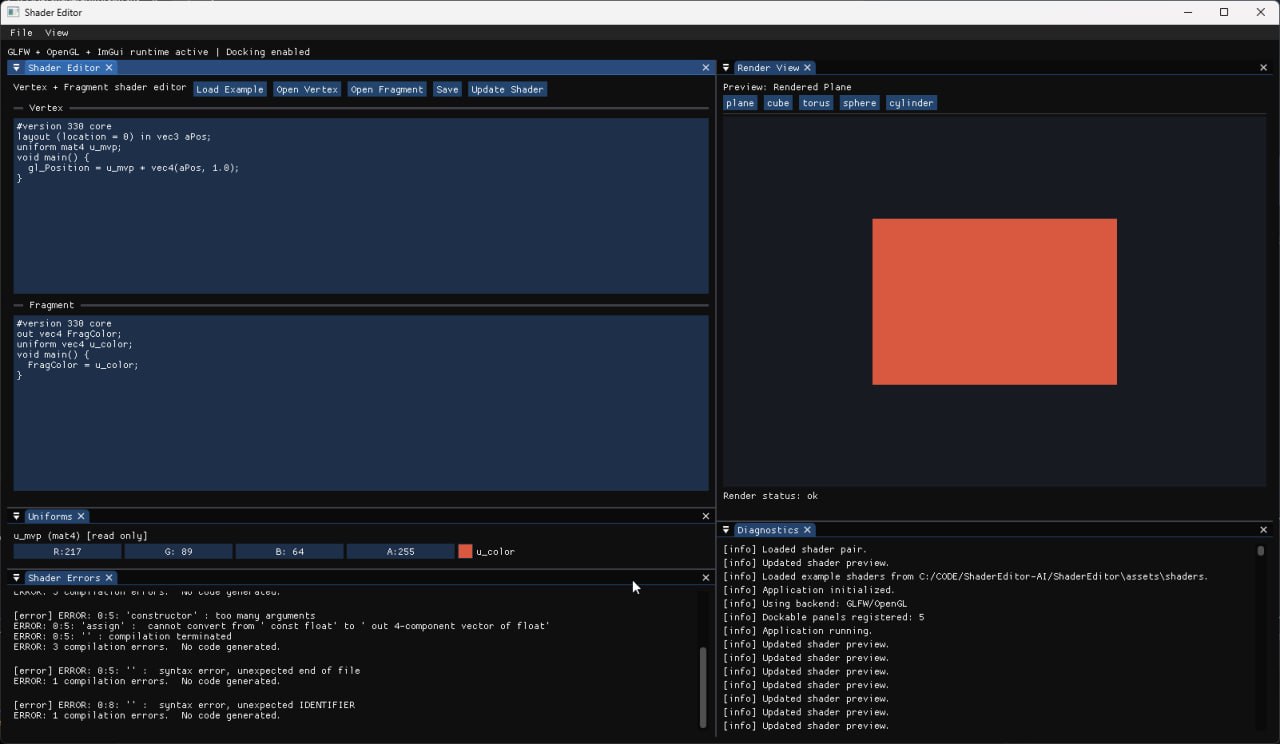
At that point, I wasn’t even thinking about Phoenix compatibility. I just wanted a small application where I could edit GLSL code, compile shaders, and see the results in a 3D preview. It was supposed to be a proof of concept, a way to explore how far I could get by using AI as the main development tool.
As often happens with these experiments, things quickly got out of hand — in a good way.
Once the basic editor was working, I started noticing all the things that would make it genuinely useful. Editing a shader is one thing; having a proper environment to develop, test, and iterate on increasingly complex materials is something else entirely.
So I kept adding features.
The editor evolved into a much more complete application, with a dockable interface, built-in 3D primitives, imported models, editable uniforms, shader diagnostics, and a growing collection of example shaders. I also added support for animated models, allowing me to test shaders against real assets rather than limiting the preview to a static cube or sphere.
The more I worked on it, the more I realized that I didn’t just want a generic shader editor. I wanted a tool that could fit naturally into my existing workflow as a demoscener and graphics programmer.
Here you can see an early version of the Shader editor:
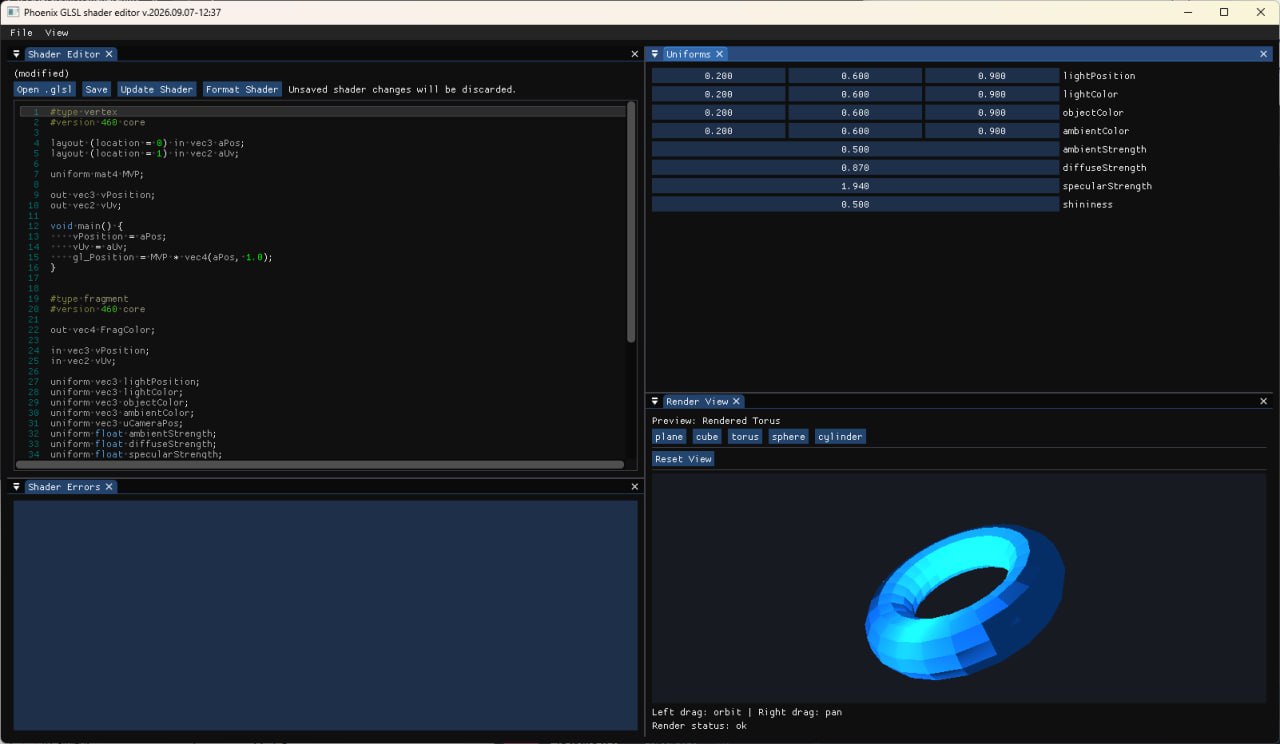
The main features
A real-time OpenGL shader editor
At its core, Phoenix Shader Editor is a desktop application for editing and testing GLSL shaders using OpenGL 4.6.
It supports Phoenix-style shader files, where vertex and fragment shader stages are stored in a single .glsl file and separated by markers such as #type vertex and #type fragment.
After editing the source, I can recompile the shader and immediately see the result in the preview. I can also save changes to the current file or save the shader under a different name.
The interface is built around a dockable workspace, so I can arrange the editor, render preview, uniforms, diagnostics, and shader errors according to what I’m working on. This is a small detail, but it makes a real difference when iterating on shaders.
Built-in primitives and 3D model import
The editor includes several built-in 3D primitives: a plane, cube, torus, sphere, and cylinder. These provide convenient targets for testing a shader without having to load an external asset.
However, I didn’t want to stop there. Shaders often behave very differently depending on the geometry, topology, normals, UV coordinates, and material properties of the object being rendered.
For that reason, the editor also supports importing external 3D models using Assimp. Supported formats include GLTF, GLB, FBX, OBJ, and DAE.
Imported models can contain multiple meshes, materials, textures, skeletons, animation clips, and even cameras. The editor can display this information and render the models using their imported material data.
Built-in primitives and imported models share the same vertex attribute layout, so I can apply the same shader to either one without having to modify the shader simply because the rendering target has changed.
Skeletal animation and bone support
One of the most important additions was skeletal animation.
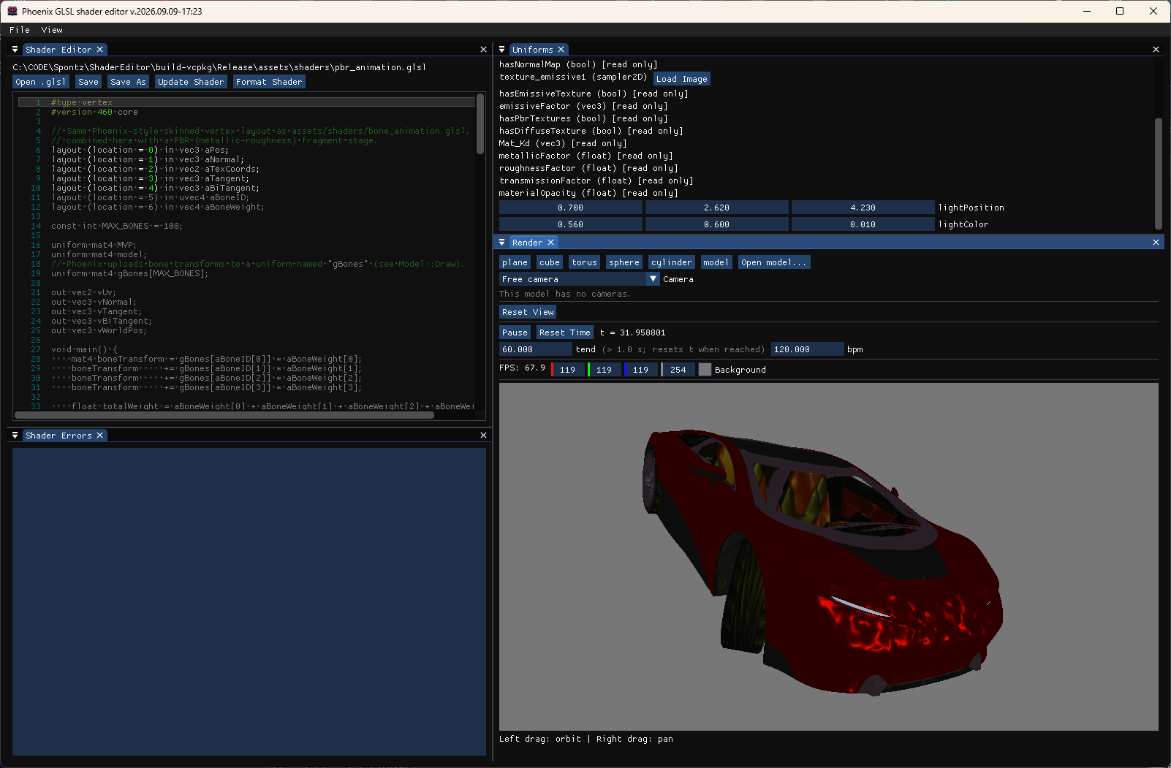
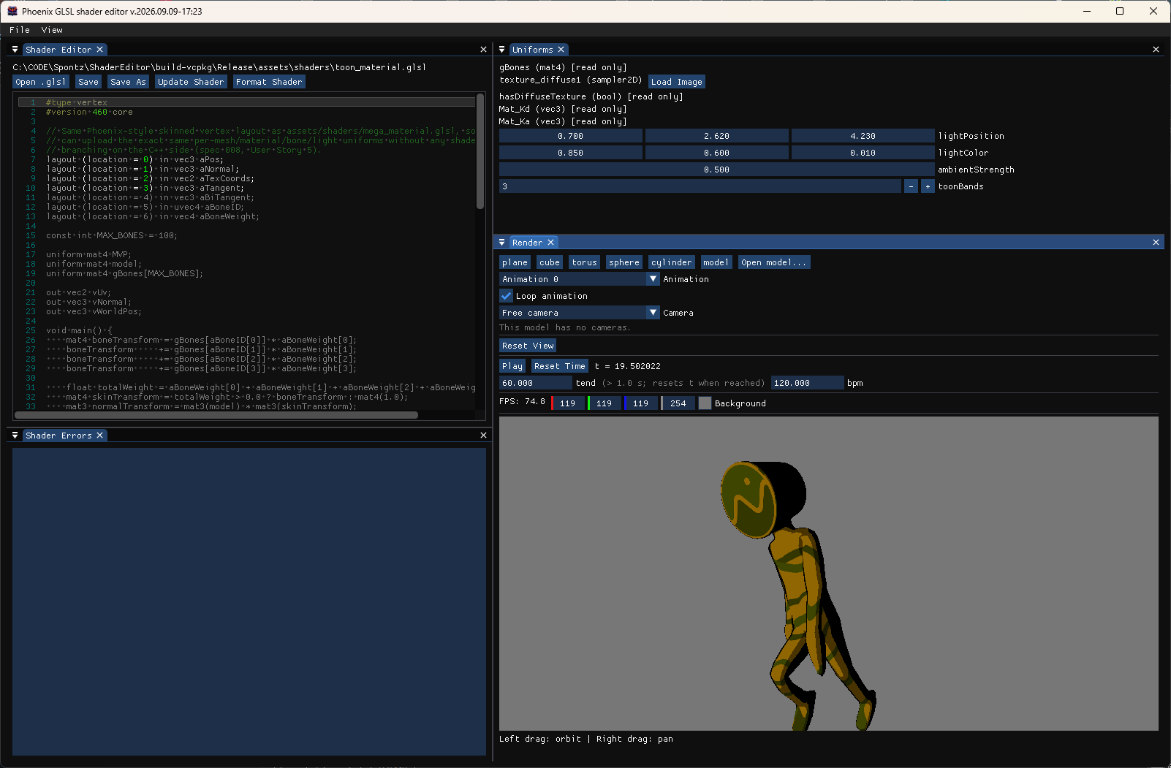
The editor can import models containing skeletons and play their animation clips directly in the preview. I can select an animation from the Render panel and choose whether it should loop or hold its final pose.
The animation system calculates the bone transformations and supplies them to the shader through the gBones array, following the convention used by Phoenix.
This makes it possible to test vertex skinning, animated materials, normal mapping, and other effects on moving characters or objects rather than only on static models.
There is also a useful fallback: shaders and models that don’t use skeletal animation can still be rendered normally. The same rendering pipeline is designed to accommodate both static and animated assets.
Keyframe animation and animated cameras
Skeletal animation isn’t the only animation system supported.
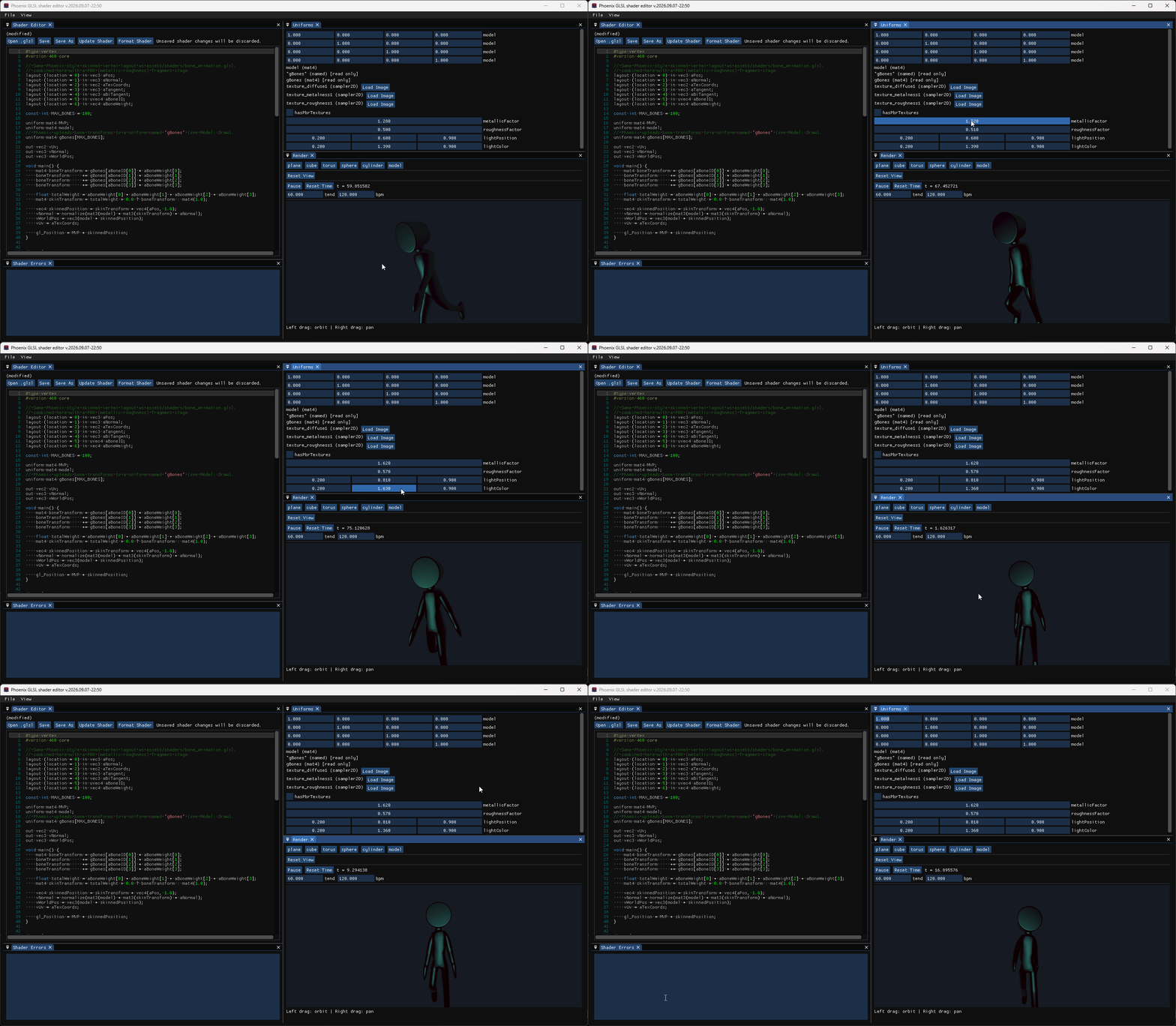
The editor also handles node-based keyframe animation, which allows individual objects in a model’s scene hierarchy to move or transform without requiring a skeleton.
These animated transformations are incorporated into the model matrix supplied to the shader. This means I can test shaders on objects whose position, rotation, or scale changes over time, even when those objects don’t use bones.
The editor can also use cameras embedded in imported models. When a model contains an animated camera, its view and projection matrices follow that camera’s animation.
This is especially useful for testing a shader in the context of a more complex scene. Instead of always relying on a manually controlled preview camera, I can inspect the model from a viewpoint authored in the original asset.
For convenience, the editor also includes a free camera with orbit, pan, zoom, and framing controls.
Phoenix-compatible uniforms and materials
The biggest change in direction came when I decided to integrate the editor properly with Phoenix.
Initially, compatibility with my demoengine had not even been part of the plan. However, it soon became clear that a generic shader editor would be much less useful to me than a tool that understood the way Phoenix handles shaders.
Phoenix provides its own set of built-in uniforms, material parameters, texture slots, and animation data. I wanted to be able to open a Phoenix shader in the editor and test it without having to rewrite the code for a completely different environment.
The preview renderer therefore supplies Phoenix-compatible values such as:
MVP,view,projection, andmodel, for the rendering transformations.t,tend, andbeat, for time-based and beat-synchronized effects.uCameraPos, for camera-dependent effects such as specular lighting and reflections.Mat_Ka,Mat_Kd,Mat_Ks, andMat_KsStrenght, for material properties.gBones, for skeletal animation.- Texture samplers and material factors corresponding to the imported model’s material data.
The editor also supports editable runtime uniforms, including float, int, bool, vectors, matrices, and sampler2D. These appear in the Uniforms panel after the shader has been compiled successfully.
Engine-provided values are handled separately from user-editable uniforms, so the editor can distinguish between data that comes from the rendering environment and parameters that I want to adjust while experimenting.
The objective is to reproduce the conventions that Phoenix shaders depend on and provide a more representative environment for testing them.
Textures, materials, and PBR shaders
Imported models often come with complex materials, and I wanted to preserve as much of that information as possible.
The editor handles imported material colours and textures, including diffuse or base-colour maps, normal maps, specular maps, emissive maps, metalness maps, roughness maps, and height maps.
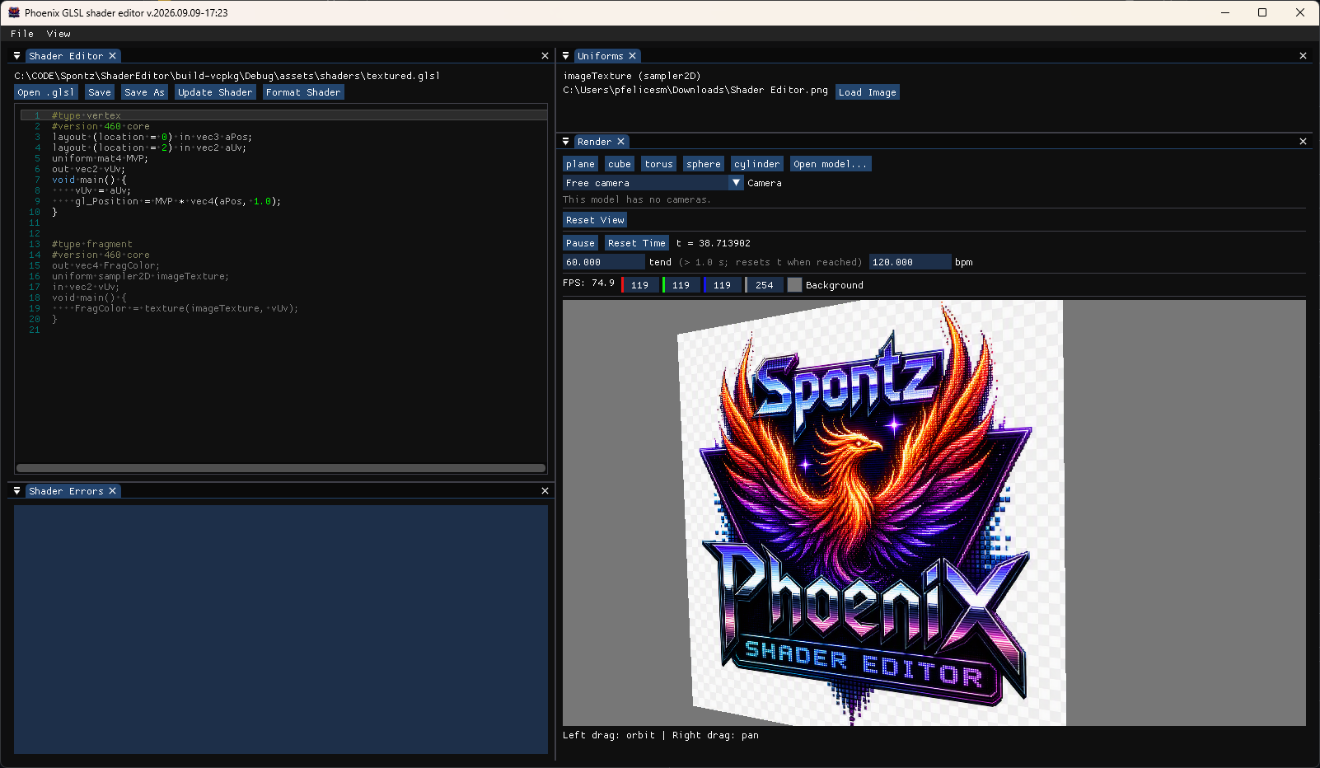
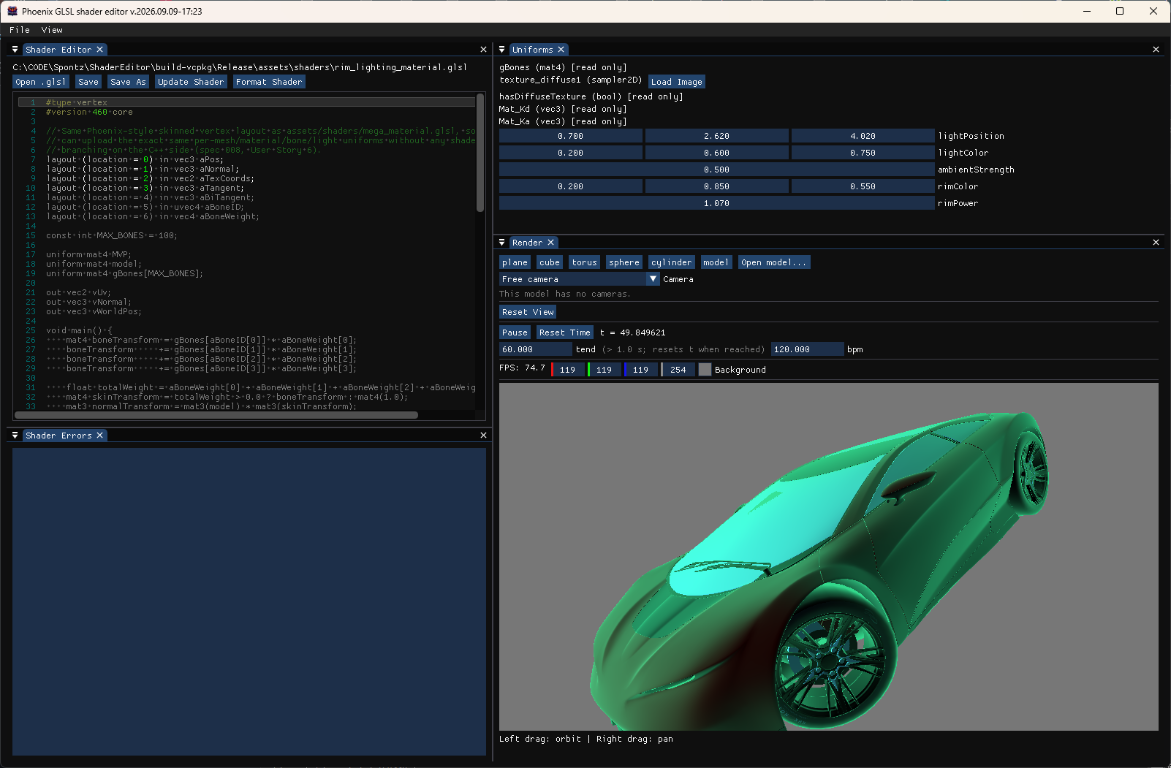
It also includes a collection of bundled shaders demonstrating different approaches to shading. These range from minimal examples for learning and debugging to more complete material shaders.
The recommended mega_material.glsl shader combines several features in a single implementation. It supports skeletal animation, a metallic-roughness PBR workflow, classic Blinn-Phong lighting, and the material maps available through the imported model.
There are also more artistic alternatives, including toon or cel shading and rim lighting, alongside simpler shaders that demonstrate textures, uniforms, and per-pixel lighting.
The idea is to provide useful starting points for new shaders while also making it easy to test existing ones against a variety of assets.
Diagnostics and development workflow
A shader editor is only useful if it makes debugging reasonably painless.
Phoenix Shader Editor includes dedicated panels for diagnostics and shader errors, together with uniform introspection and controls for updating the active shader.
The parser also keeps track of the correspondence between lines in each shader stage and their position in the combined source document. This helps connect errors reported for an individual stage back to the code being edited.
The editor has therefore grown beyond a simple source-code window into a more complete environment for developing and inspecting shaders.
Development with Spec-Kit: Learning and Experimentation
To develop this tool, I used Spec-Kit, a methodology that helped me define the requirements, identify the features, and structure the specifications throughout the development process. All the specifications created during development are available in the project repository, making it possible to follow the evolution of the tool and understand the decisions that shaped it.
The whole process has been a learning experience for me on several levels. Working with this methodology and exploring the possibilities offered by new AI-assisted development tools has been both highly rewarding and, above all, a lot of fun.
And, as I think happens to most people experimenting with these technologies, I’ve been genuinely surprised by the results. Not only by what I’ve managed to build, but also by how quickly I’ve been able to do it, considering the limited amount of time I could dedicate to the project.
Overall, it’s been a very enriching experience that has left me eager to keep experimenting and turning new ideas into reality.
Under the hood: Architecture and technologies
Beyond its features, I wanted Phoenix Shader Editor to have a reasonably clean internal structure. Even though the project started as an experiment, I didn’t want it to end up as a single source file containing the entire application.
The code is written in C++20, uses OpenGL 4.6 for rendering, and is organized into separate application, editor, rendering, service, and UI layers.
The main libraries
The project uses a relatively small set of established libraries, each with a specific responsibility.
OpenGL 4.6 — Graphics API
OpenGL is the graphics API used to compile shaders, manage rendering resources, and draw the preview scene.
The editor is a desktop application rather than a browser-based shader playground, which makes it possible to work directly with GLSL and the GPU rendering pipeline.
GLFW — Window and input management
GLFW handles window creation, OpenGL context management, and keyboard and mouse input.
It provides the platform layer needed to run the editor without having to implement these operating-system-specific details myself.
GLAD — OpenGL function loading
GLAD loads the OpenGL functions exposed by the graphics driver.
It provides access to the OpenGL API required by the renderer, including the functionality used by the application’s modern OpenGL pipeline.
Dear ImGui — User interface
Dear ImGui is the foundation of the application’s interface.
I use its docking functionality to organize the application into independent panels: the shader editor, render preview, uniforms, diagnostics, shader errors, and configuration.
This is a particularly good fit for a graphics development tool because the interface can be rearranged according to the task at hand. I can prioritize the code while editing, enlarge the preview when checking a material, or keep diagnostics visible when debugging a shader.
GLM — Mathematics
GLM provides the vector, matrix, and transformation types used throughout the rendering code.
It is used for camera calculations, model transforms, projection matrices, skeletal animation, and the preparation of uniform data for shaders.
Using GLM also keeps the mathematical conventions close to those commonly used in OpenGL applications.
Assimp — 3D model importing
Assimp is responsible for importing external 3D assets.
The editor supports formats such as GLTF, GLB, FBX, OBJ, and DAE. Imported assets can include meshes, materials, textures, skeletal data, animation clips, and cameras.
Assimp is a key part of the editor’s ability to test shaders on real assets rather than only on simple procedural geometry.
stb_image — Image loading
stb, specifically stb_image, provides image loading functionality for textures.
Together with Assimp’s material data and embedded-image support, it allows imported models to be previewed with their associated textures, including images embedded in GLB files.
ImGuiColorTextEdit — Shader source editor
The project includes a text-editor component in third_party/imgui_color_text_edit/, based on ImGuiColorTextEdit.
This component provides the code-editing surface inside the Dear ImGui interface, instead of requiring a separate editor window or an external application.
Catch2 — Unit testing
Catch2 is included in the project for automated tests.
The test suite covers several core components, including shader-file handling, model importing, skeletal animation, camera behaviour, uniform introspection, and workspace state.
This is useful for a project that has grown incrementally: when I change an internal component, I can also verify that the existing behaviour continues to work.
CMake and vcpkg — Build system and dependency management
CMake defines the build configuration and organizes the application into targets. The project requires CMake 3.27 or newer.
vcpkg manages the main external dependencies, including GLFW, GLAD, GLM, Assimp, Dear ImGui, and stb.
This keeps dependency installation reproducible and avoids having to manage every library manually.
Project architecture
The source code is organized under src/, with each area responsible for a specific part of the application.
The main structure looks like this:
Phoenix-ShaderEditor/
├── src/
│   ├── app/
│   │   ├── application/
│   │   ├── platform/
│   │   └── workspace/
│   ├── editor/
│   ├── rendering/
│   │   ├── geometry/
│   │   ├── models/
│   │   ├── opengl/
│   │   └── shaders/
│   ├── services/
│   │   ├── files/
│   │   └── shaders/
│   └── ui/
│       ├── dockspace/
│       ├── panels/
│       └── widgets/
├── assets/
│   ├── shaders/
│   └── models/
├── tests/
│   ├── support/
│   └── unit/
└── third_party/
    ├── catch2/
    └── imgui_color_text_edit/
Application and workspace
The app/ layer contains the application entry point, window integration, and workspace-related state.
It is responsible for bringing the different parts together: creating the application, initializing the rendering and UI systems, and managing the state shared by the editor panels.
This is also where platform-specific integration lives, keeping those details separate from the rendering and shader-handling code.
Editor state
The editor/ layer manages the shader document being edited.
It separates the current document and its editing state from the actual UI controls. This distinction is important because the editor should not depend on whether a particular panel is visible or how the workspace has been arranged.
Rendering
The rendering/ layer is split into four areas.
geometry/contains the built-in geometry and primitive-generation code. These primitives provide convenient targets for quick shader testing.models/handles imported models, skeletal animation, model cameras, and model information. Assimp is used to load assets, while dedicated components process animation and camera data.opengl/contains the preview renderer and camera implementation. This is where the scene is prepared and drawn using OpenGL.shaders/deals with shader-program handling and uniform introspection, separating those responsibilities from the UI.
This separation makes the rendering code easier to evolve without having to rewrite the application interface every time a new rendering feature is introduced.
Services
The services/ layer contains functionality that can be reused by several parts of the application.
services/files/ manages shader-file operations, including loading and saving. services/shaders/ contains the Phoenix shader parser, which interprets the stage markers in a combined .glsl document and extracts the corresponding shader source.
The parser also tracks the relationship between lines in each extracted stage and their locations in the original document. That information is useful when reporting shader errors, because diagnostics should refer to the code the user actually sees in the editor.
Keeping file access and parsing in dedicated services avoids duplicating that logic in the interface or rendering components.
User interface
The ui/ layer implements the visible editor.
dockspace/ manages the dockable layout, while panels/ contains the main interface panels. Individual panels handle tasks such as editing the shader source, displaying the preview, inspecting uniforms, showing diagnostics, and presenting compilation errors. widgets/ contains smaller reusable UI elements, including document dialogs.
The interface is therefore divided into focused components rather than being implemented as one large collection of UI code.
Assets and tests
The assets/ directory contains the bundled shaders and supporting model assets used by the application. The example shaders are useful both as starting points for new experiments and as reference implementations for common techniques.
The tests/ directory contains the automated test suite, while third_party/ holds the source code for components included directly in the repository.
The tests are linked against the same core library used by the application, allowing the non-UI logic to be checked independently of an interactive OpenGL session.
A tool that grew with its requirements
Looking back, the most surprising part of this project is how far it moved from its original scope.
I started out wanting to answer a simple question: could I build a small application entirely with AI assistance?
Instead, I ended up with a proper C++20 application, an OpenGL preview renderer, a modular UI, model import, skeletal and keyframe animation support, Phoenix-compatible uniforms and materials, a shader library, automated tests, and a codebase structured for further development.
More importantly, the project is becoming a practical companion to Phoenix rather than just another standalone shader editor.
The experiment also reinforced something I find interesting about AI-assisted development: the initial implementation is only the beginning. The real value comes from being able to iterate, challenge the original assumptions, and progressively turn a proof of concept into something genuinely useful.
For anyone interested in the implementation, the full source code is available on GitHub: Spontz / Phoenix-ShaderEditor
And, of course, the engine it is designed to complement is available here: Spontz / Phoenix